How to edit an SVG after tracing in Curvata
To edit a Curvata SVG, export it, open the file in a vector editor, and inspect the outer artwork group. Ungroup it or expand its children to select individual regions. Curvata creates the trace; node editing and new drawing happen in the destination editor.
This guide uses Curvata, a free image vectorizer for Mac. Your images are traced locally, with no account or cloud upload.

Export the result you reviewed
Before saving, make sure any palette update or background cleanup has finished. Export is unavailable while the displayed result does not match the current settings. Compare important edges and enclosed details, then click Export SVG or press ⌘⇧S.
Save an untouched export before editing. A copy gives you a reference if you later simplify paths, recolor regions, or delete the wrong object. Keep the original raster too; the SVG does not preserve the entire tracing session as an editable Curvata project.
Open the SVG in a vector editor that supports it. Different editors can organize imported objects differently, so inspect the document’s layers or object panel before making changes. In Affinity, the outer group may appear as an artwork layer.
Inspect groups before ungrouping
- Open the exported file. Check its appearance against the image you reviewed in Curvata.
- Select the artwork group. Expand it in the layers or objects panel to see its children.
- Select an individual region. You may be able to choose a child directly without ungrouping everything.
- Ungroup when needed. Separate the outer artwork when you want to move objects independently.
- Inspect nested fills. A retained fill inside a letter or enclosed shape can be grouped with that shape. Ungroup that nested object if you need its fill separately.
- Save an edited copy. Keep the original export available for comparison.
Do not assume that every visible color corresponds to one object. Disconnected regions can share a paint while remaining separate paths.
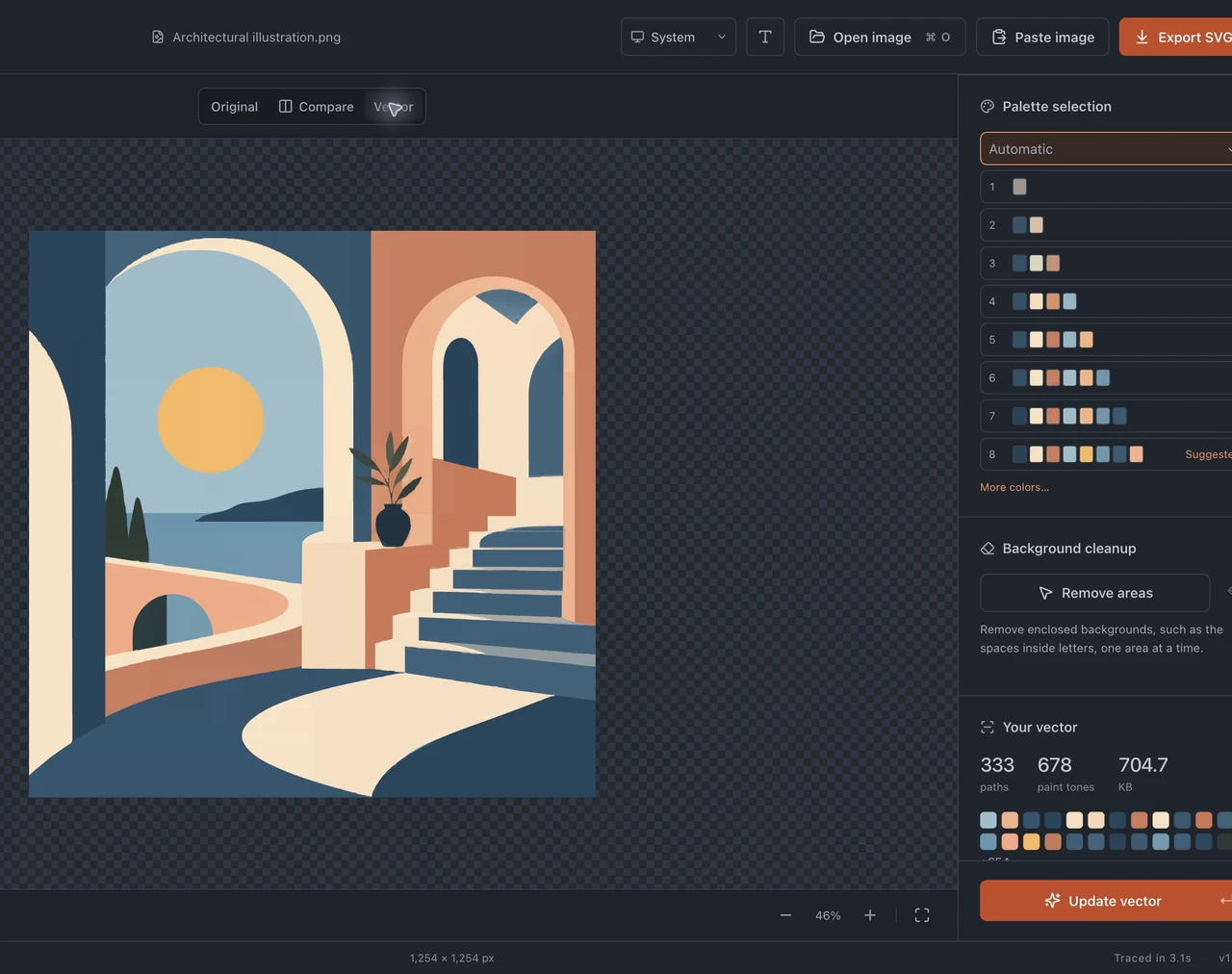
Recolor shapes and handle traced text
The SVG contains paths you can select and recolor. Match known brand colors in your editor rather than assuming a color sampled from a screenshot is authoritative. Check that changing a region’s fill does not affect an overlapping region you intended to keep.
Lettering is also traced geometry. It is not live text with a font, text cursor, or editable word content. You can adjust its shapes, but replacing a word is usually a job for new text objects or manual reconstruction in the destination editor.
For a logo, inspect the counters inside letters before rearranging fills. A retained inner fill and a transparent cutout behave differently. The logo guide helps you decide whether those interior regions belong in the final artwork.
Keep cutouts and gradients intact
Background regions removed in Curvata become transparent areas in the exported geometry. If an interior region was retained instead, it can remain a nested fill. View the artwork on a different background to distinguish those cases.
Gradient artwork can contain editable bands or shading inside a shared vector clipping outline. Moving one band independently can expose an edge or change the silhouette. Keep the group together until you understand the relationship between its paint and boundary.
The exported vector describes approximated raster evidence. Simplifying nodes too aggressively can change a narrow gap, corner, or delicate line. Compare against the untouched export at both a close zoom and the intended display size. For color changes before export, use the Curvata palette guide.
Common questions
Can I edit the paths inside Curvata?
The current app has no node editor or drawing tools. Export SVG and use a vector editor for those changes.
Can I reopen the SVG as a Curvata project?
There is no editable project format in the current workflow. Curvata opens supported raster images and exports SVG.
Why does the file look grouped?
Related traced objects are organized within artwork and nested groups. Expand those groups or ungroup them deliberately to reach the shape you need.
Explore all Curvata guides or visit Curvata for Mac to learn more about the app.