How to choose colors for a vector trace
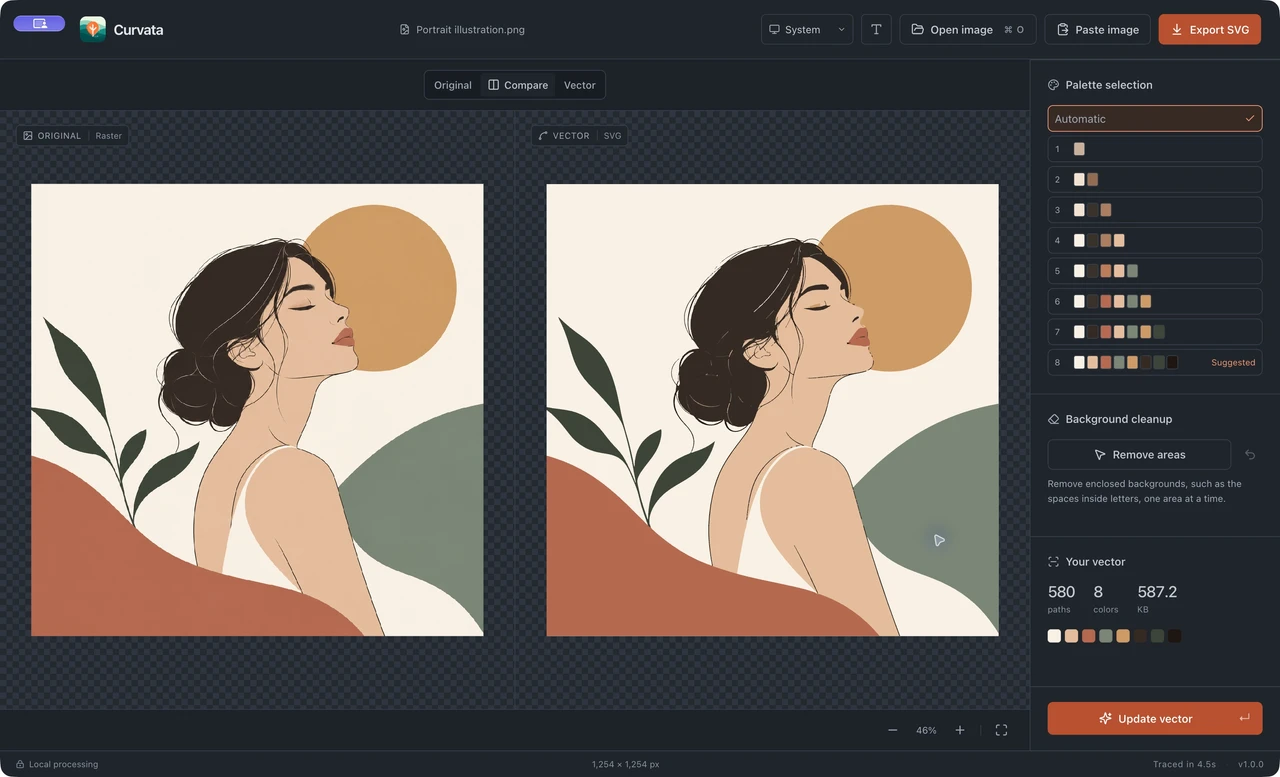
To change the colors in a Curvata trace, select a quick preset under Palette selection and click Update vector. Compare that result with Automatic before exporting. A smaller palette can simplify flat artwork but may remove useful detail.
This guide uses Curvata, a free image vectorizer for Mac. Your images are traced locally, with no account or cloud upload.
Begin with the automatic result
Automatic is a sensible baseline because it keeps the source’s color distinctions rather than forcing a predetermined count. Open the image and let the first trace finish. Look at the whole illustration, then inspect any small colored accents and shaded areas.
A large white background can dominate the pixels without being the most meaningful color. A tiny orange dot or a thin gray annotation might matter more to the design than its area suggests. Check those details rather than judging a palette only by how many large color blocks appear.
The current interface offers Automatic and quick palette presets. It does not expose custom swatch editing or the advanced trace-setting panels. These instructions follow the controls available in the current app, so there is no step that asks you to find a hidden palette editor.
Compare a quick palette preset
- Open the image. Wait for the initial trace and available quick palettes.
- Inspect the preset rows. Each row previews a set of colors for the current artwork.
- Select a row. Try a compact palette appropriate to the illustration. The preview still shows the previous trace until the update completes.
- Click Update vector. Wait for processing. Export stays unavailable while the current settings and displayed result do not match.
- Compare with the source. Check the silhouette, narrow lines, accents, and any shading that should remain.
- Return to Automatic if needed. Select it, update again, and compare the fuller result.
- Export the preferred version. Use a clear file name if you are keeping more than one palette experiment.
A preset is a choice for this artwork, not an official brand color specification. Match known brand values later in a vector editor.
Choose fewer colors for a reason
A small palette can suit a flat logo, a one-color icon, or artwork that needs deliberate simplification. It may reduce minor color differences introduced by a scan or JPEG compression. That can make some regions easier to manage.
However, adjacent shades can define a real edge. Removing one may flatten a face, hide a label, or merge a thin line with its background. Compare at the intended display size and at a closer zoom. The best palette is the one that preserves the information your design needs.
For logos, inspect lettering and negative space using the logo guide. For compressed sources, compare edge artifacts using the JPEG guide rather than treating every extra shade as intentional artwork.
Understand shading and file complexity
Automatic tracing can preserve supported smooth shading, including some editable linear gradients. Complex gradients, textured images, and continuous transparency still need approximation. A palette change can alter both the colors and the shapes used to describe them.
A lower color count does not guarantee the smallest SVG. The geometry, number of regions, and clipping structures also affect file complexity. Inspect the exported file rather than selecting a preset solely to reach a particular number.
If you want to recolor individual objects after export, follow the SVG editing guide. Keep grouped gradient parts together until you understand the clipping outline; moving one component independently can change the visible shading.
Common questions
Can I enter a custom hex color in Curvata?
Custom palette editing is not exposed in the current interface. Choose a quick preset or Automatic, then use a vector editor for deliberate brand-color changes.
Does one color mean one SVG object?
No. Separate connected regions can still produce multiple paths, even when they share a paint color.
Will a palette change remove the background?
It changes the trace’s paints. Use Remove areas to select unwanted background regions deliberately.
Explore all Curvata guides or visit Curvata for Mac to learn more about the app.