How to turn a drawing into SVG on Mac
To turn a drawing into SVG on Mac, scan or photograph it clearly, open the supported raster image in Curvata, compare the trace with the original, and export SVG. Check fine strokes and paper regions before removing any background.
This guide uses Curvata, a free image vectorizer for Mac. Your images are traced locally, with no account or cloud upload.
Capture a clear drawing
A flat, evenly lit scan is a useful starting point. If you photograph the page, keep the camera parallel to it and avoid shadows across important lines. Make sure the ink is in focus. A dark room, curved page, or reflective surface can make the background harder to distinguish from the drawing.
Curvata opens PNG, JPG, JPEG, WebP, TIFF, and GIF. A drawing stored in PDF needs to be exported as a supported raster image first. Keep the original scan, and use another editor if you need to crop borders, rotate a page, or correct exposure before tracing.
Do not remove faint pencil lines before deciding whether they belong to the finished art. A cleaner source helps, but overly strong contrast adjustments can erase delicate marks or close narrow gaps. See the source preparation guide for a practical inspection sequence.
Trace the drawing in Curvata
- Open the scan or photo. Drag it into Curvata, click Open image, or press ⌘O.
- Wait for Automatic. The app starts tracing when the image opens.
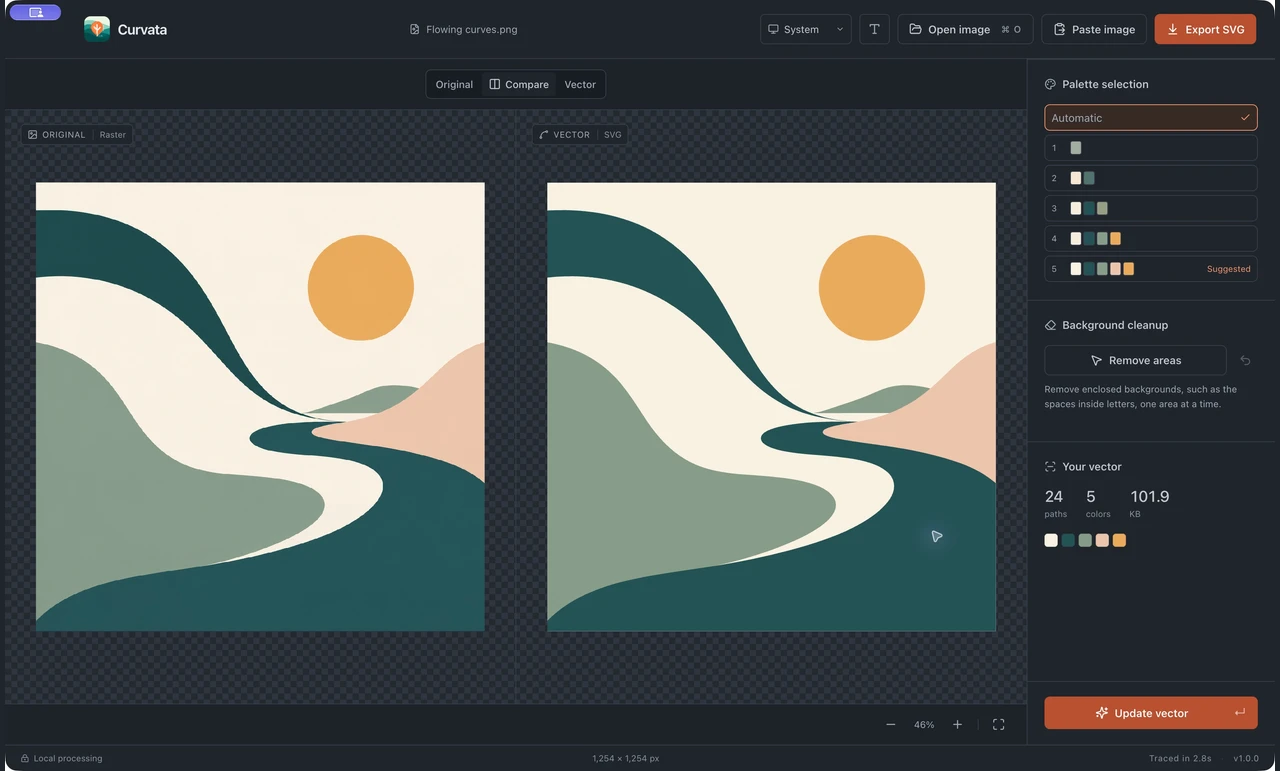
- Select Compare. Review the original and vector side by side. Zoom to inspect thin lines and small marks.
- Evaluate a palette preset. A simple ink drawing may suit a small set of colors. Update the vector after choosing the preset and check what changed.
- Review paper regions. If the background should be transparent, use Remove areas one connected region at a time.
- Export the SVG. Save a new file and inspect its objects in a vector editor.
A technical drawing needs especially careful review of labels, dimension lines, and dotted strokes. A readable fitted preview does not establish that every small symbol survived.
Understand filled shapes and centerlines
Curvata traces filled regions. A pen stroke becomes a shape with a boundary around its thickness. It does not become a single editable centerline that exactly follows the pen’s movement. This distinction matters when you want to change stroke width, animate a handwriting path, or prepare a drawing for a pen plotter.
For a bold ink illustration, filled outlines may be exactly what you need. For a plotting or cutting workflow that requires single-line strokes, use software intended for centerline tracing or reconstruct those lines in an editor. Do not treat an outline SVG as a guaranteed machine-ready toolpath.
Open the exported file and inspect a representative stroke before committing to a production workflow. The raster and vector guide explains why having an SVG extension does not guarantee a particular object structure.
Keep useful detail and remove paper carefully
Paper texture, scanner dust, and uneven lighting can become regions in a trace. A large set of tiny shapes makes editing harder, but removing everything small can also erase a dot, accent, or deliberate stipple. Review the drawing’s important details before simplifying it.
With background selection, connected paper outside the drawing and paper enclosed by an ink loop can be separate regions. Choose them individually when appropriate. Undo restores a selection, and clearing the selections returns the removed areas. Opening another image resets the selection history.
Thin lines and faint marks can still be lost during tracing or source downsampling. If a detail is essential, compare it against the original and correct it in the destination vector editor. For paper cleanup, follow the background guide.
Common questions
Can I trace pencil sketches?
You can open their raster images, but faint strokes and shaded paper can be difficult to separate. A clear scan and careful review help; the result may need manual cleanup.
Will the SVG contain one path for each drawn line?
Not necessarily. Filled regions, overlaps, and connected marks determine the traced objects. The export does not preserve the original order of pen strokes.
Can I edit nodes inside Curvata?
The current app converts, compares, selects quick palettes, removes background areas, and exports. Use a separate vector editor for node editing and drawing new shapes.
Explore all Curvata guides or visit Curvata for Mac to learn more about the app.